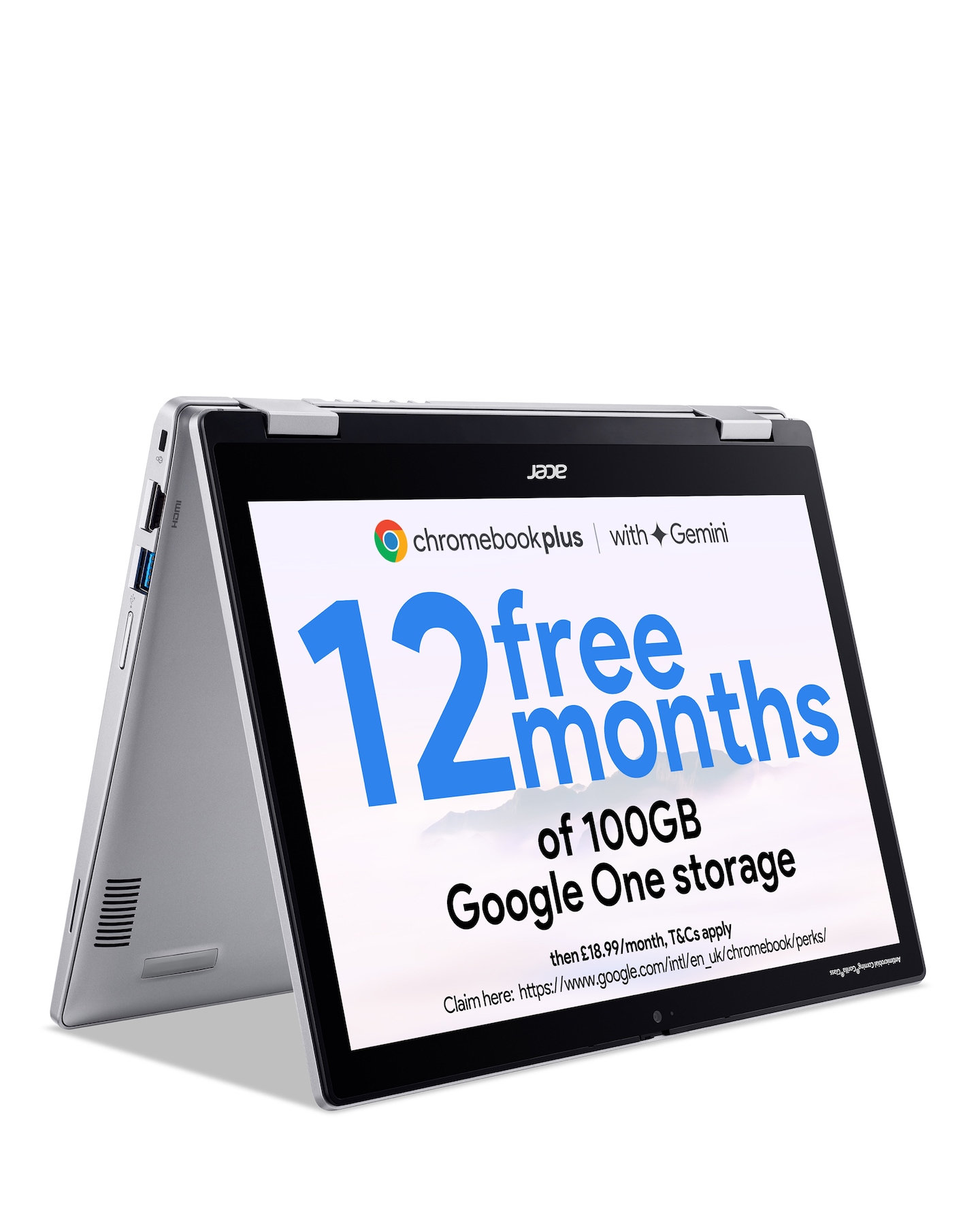
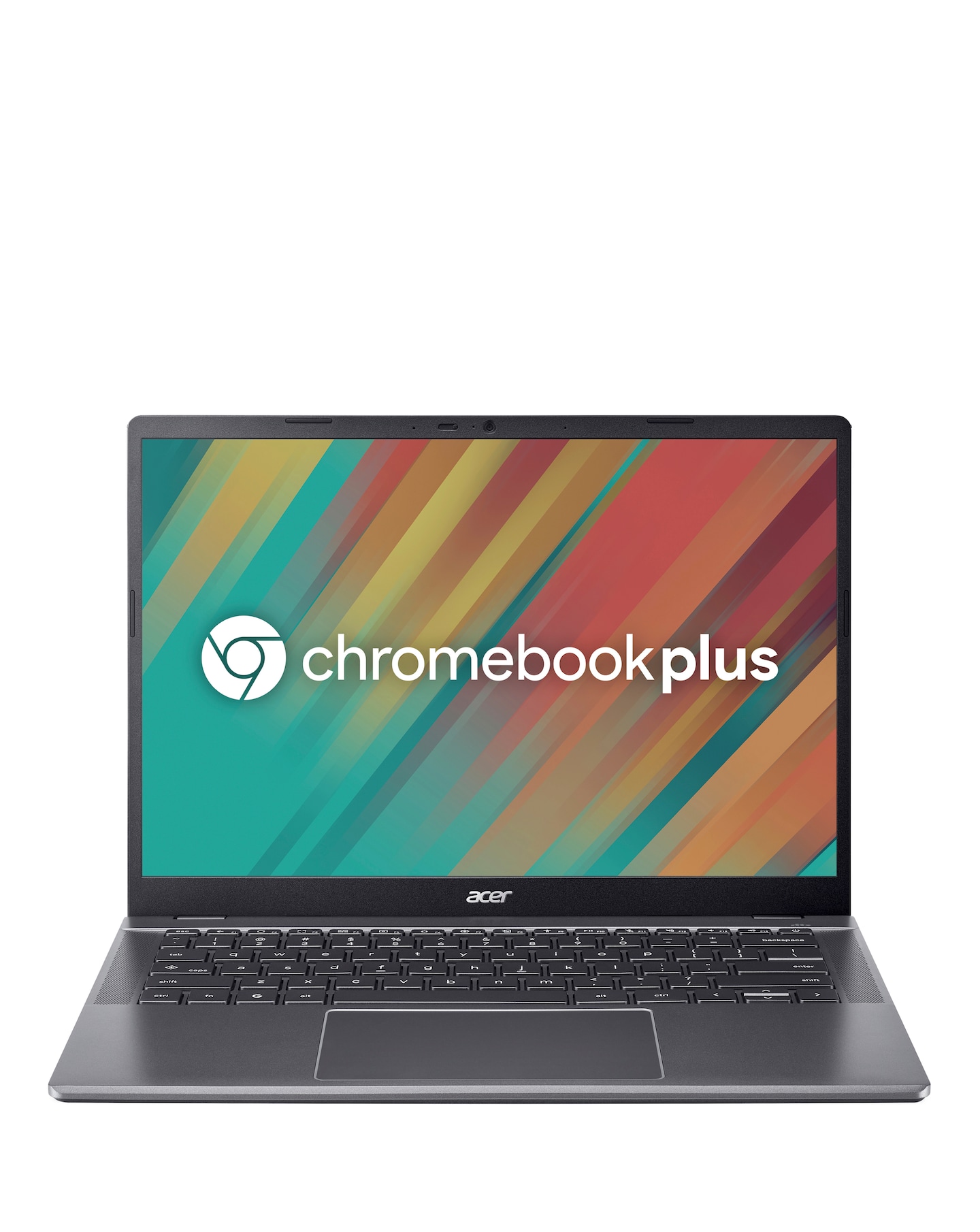
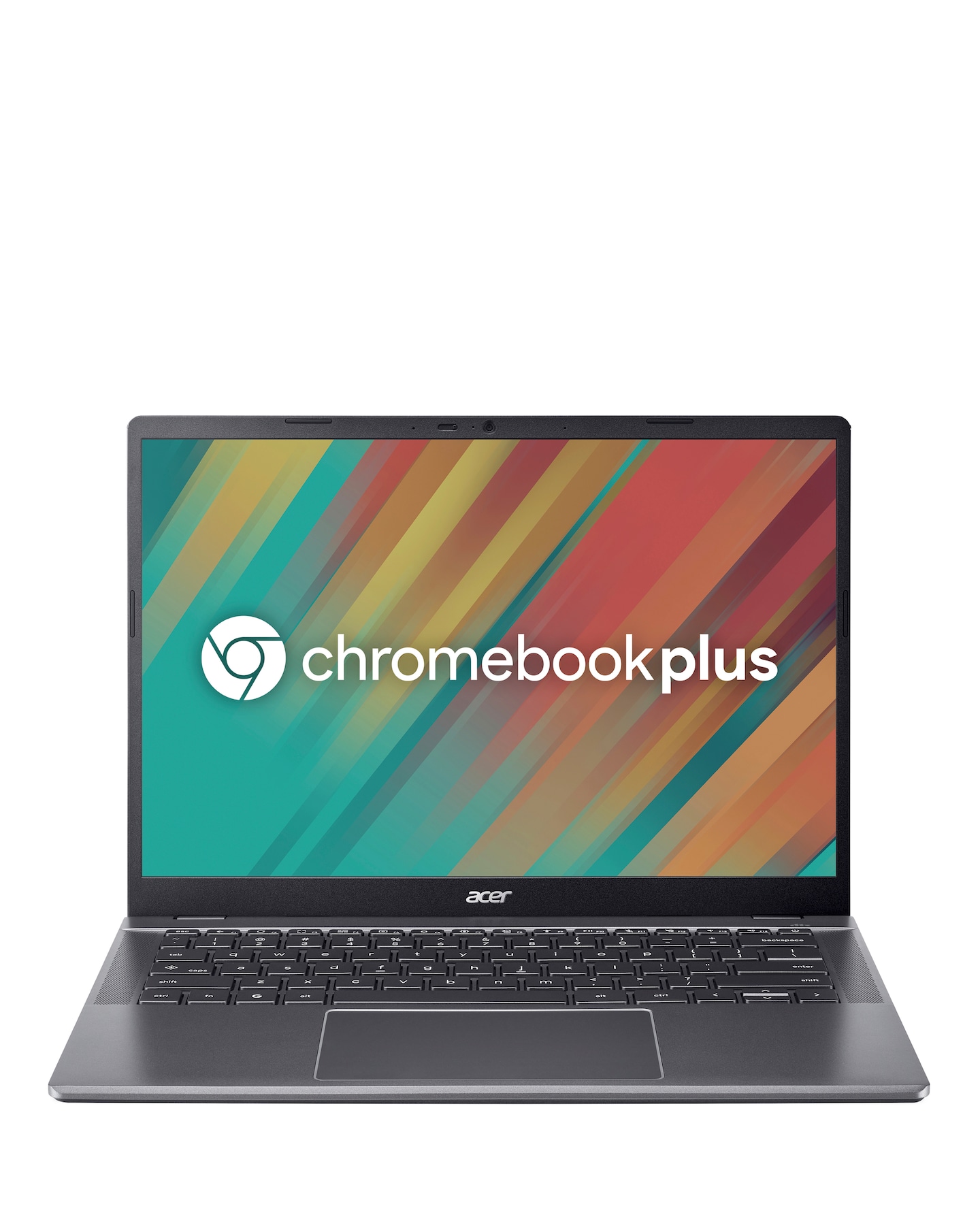
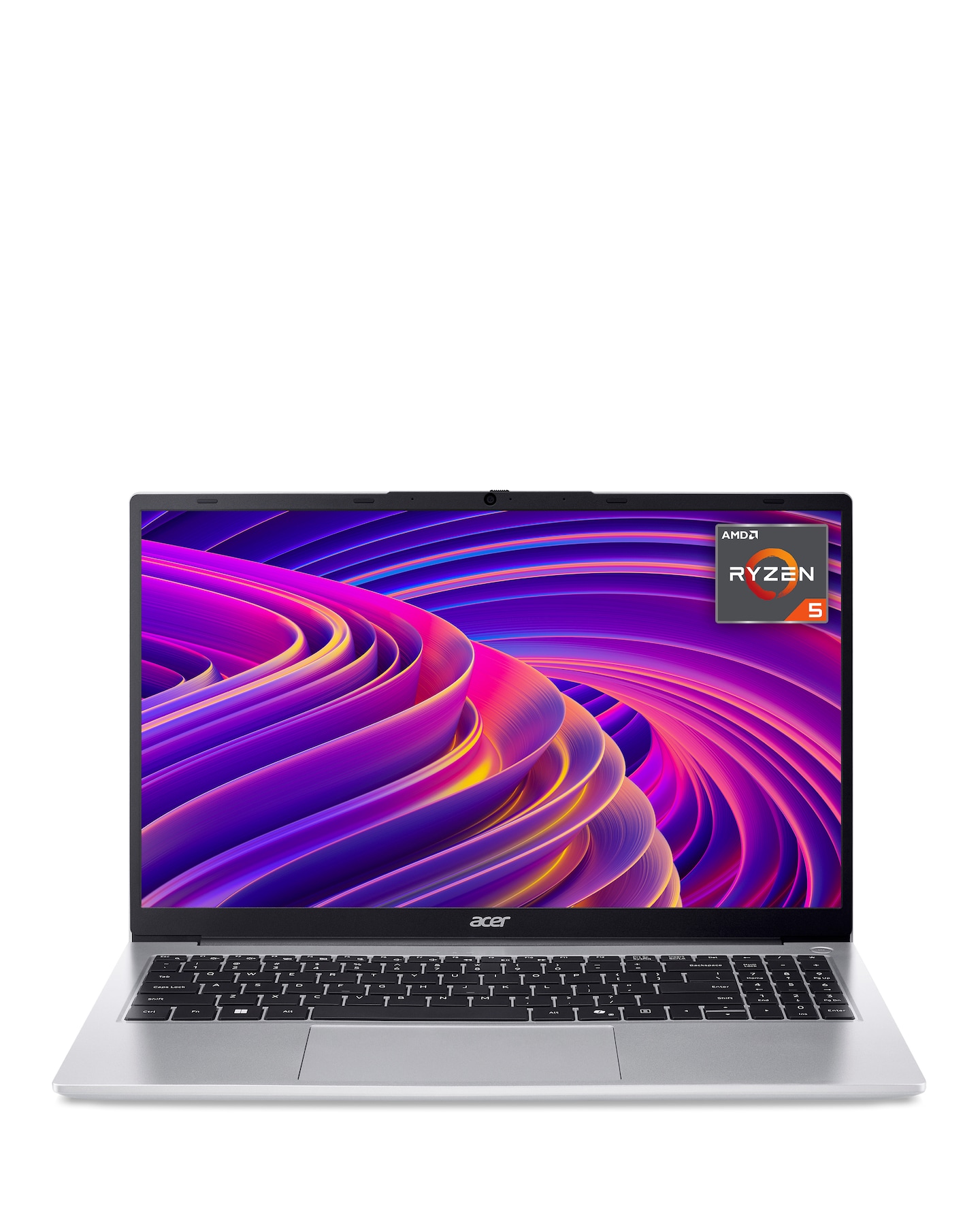
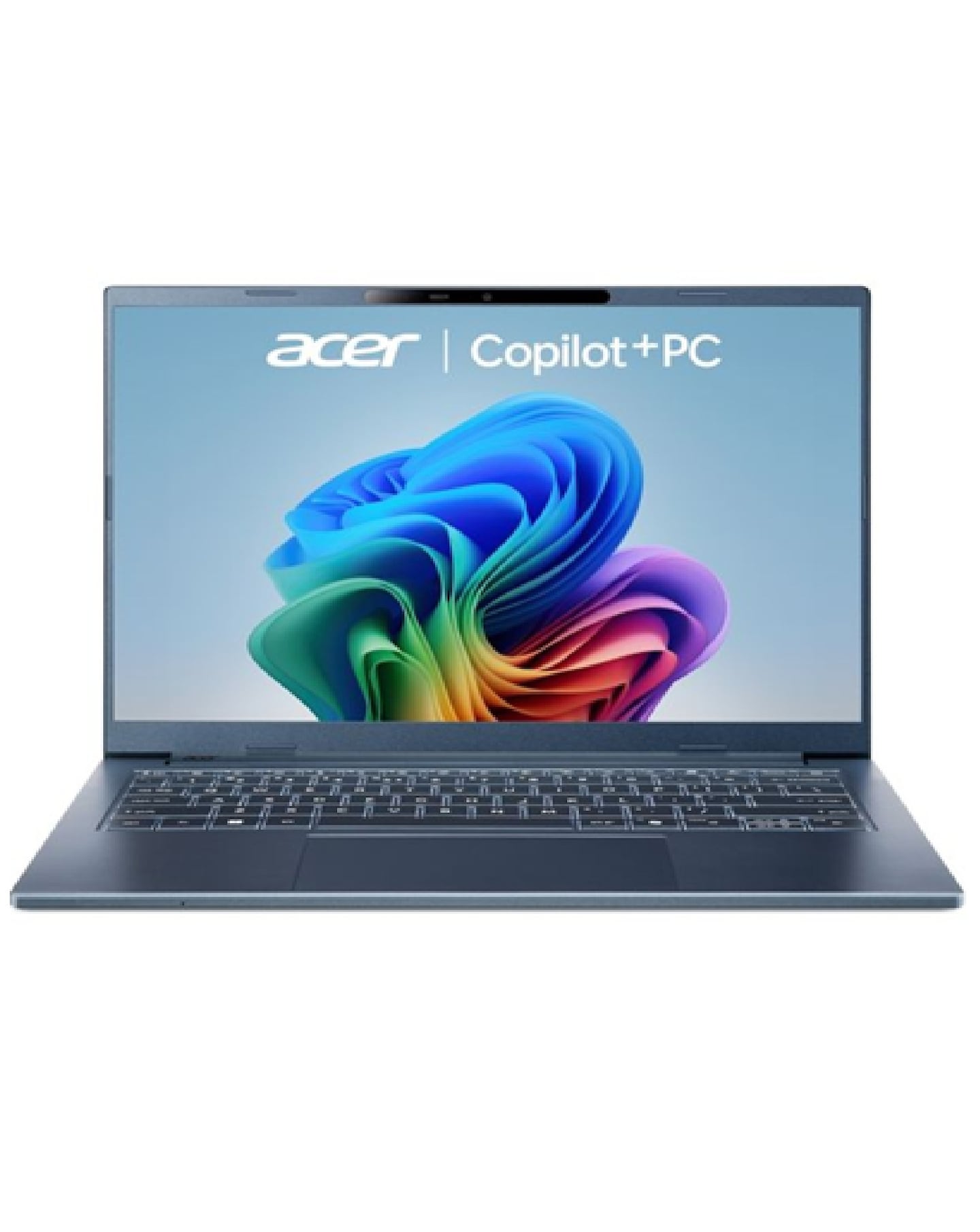
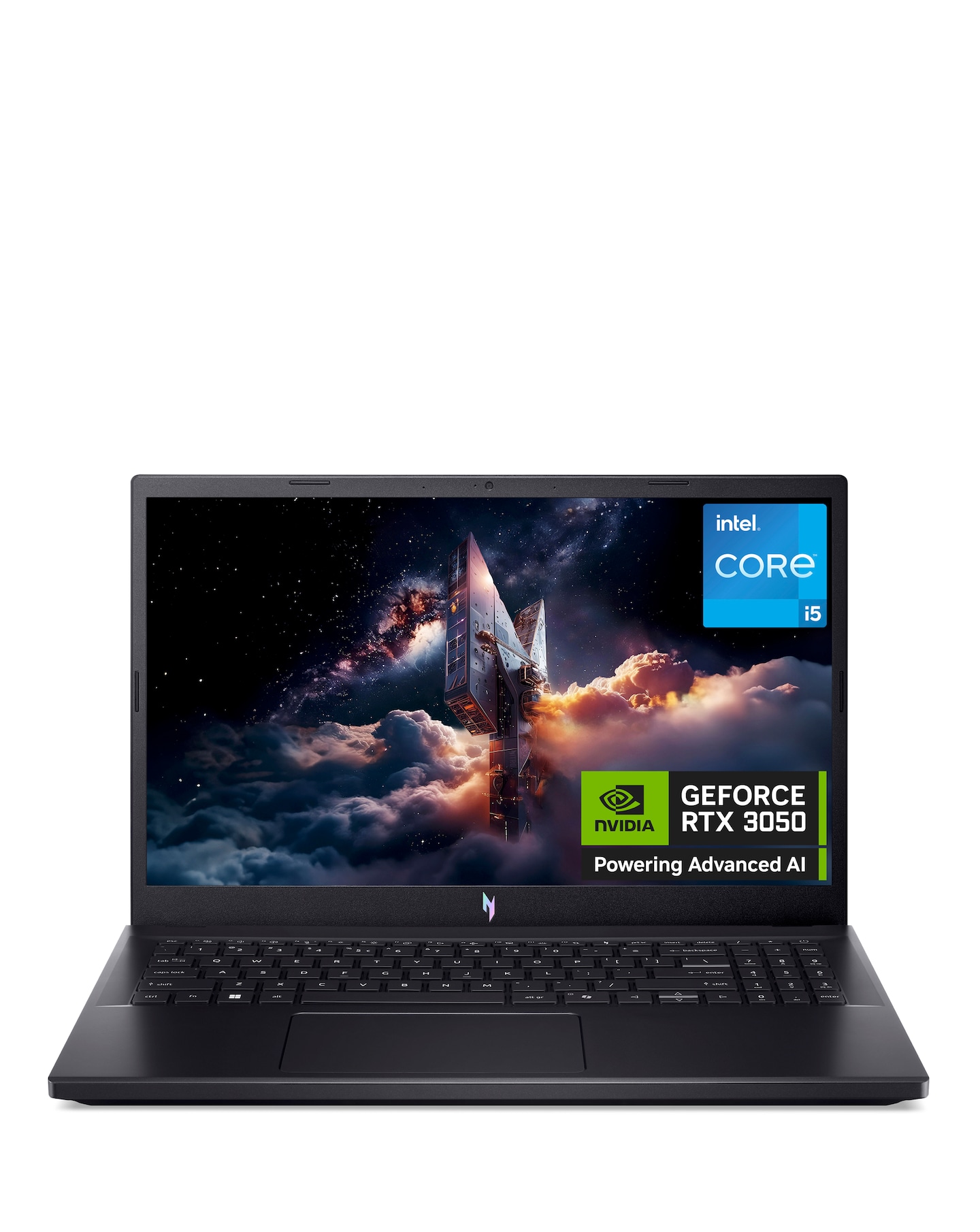
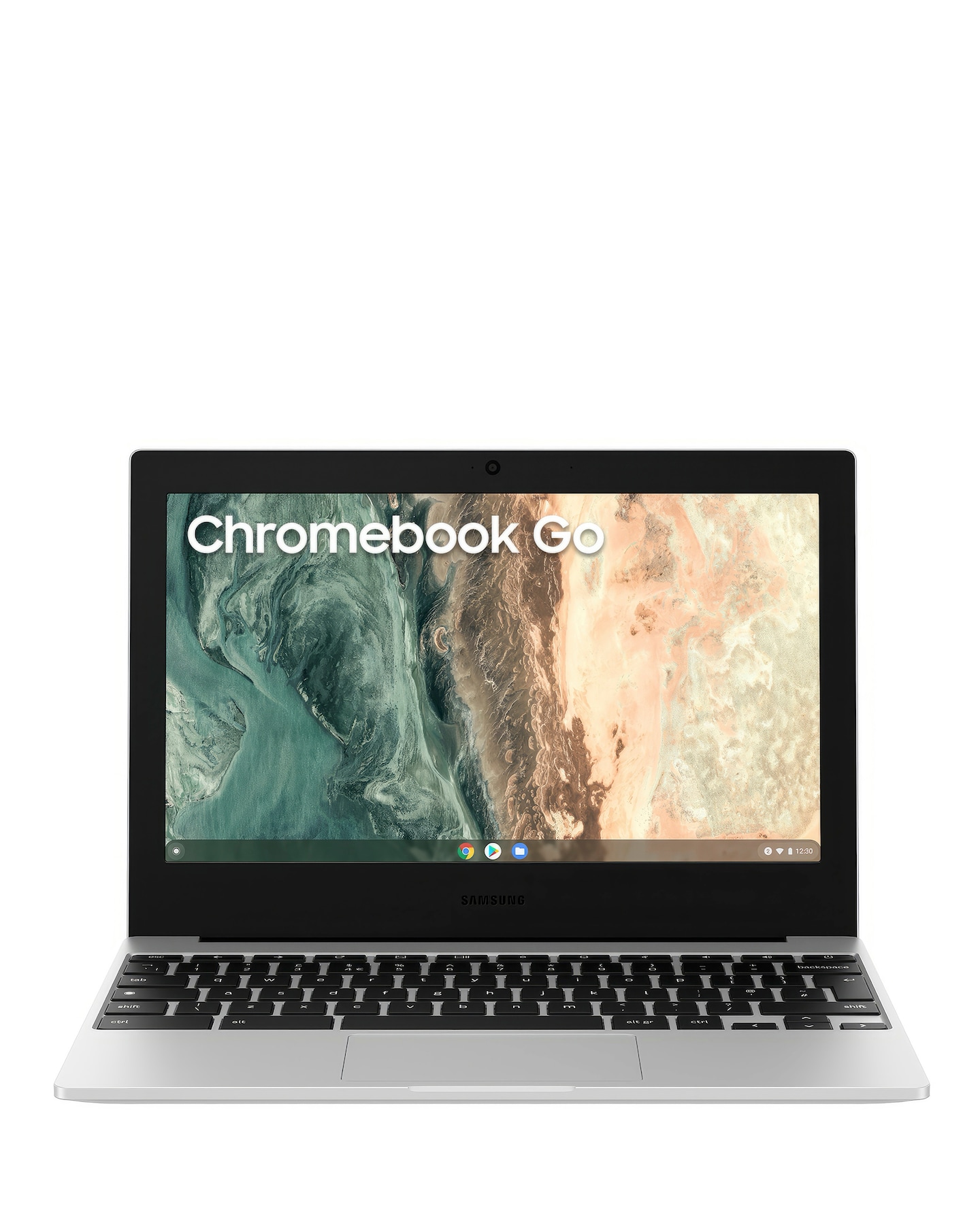
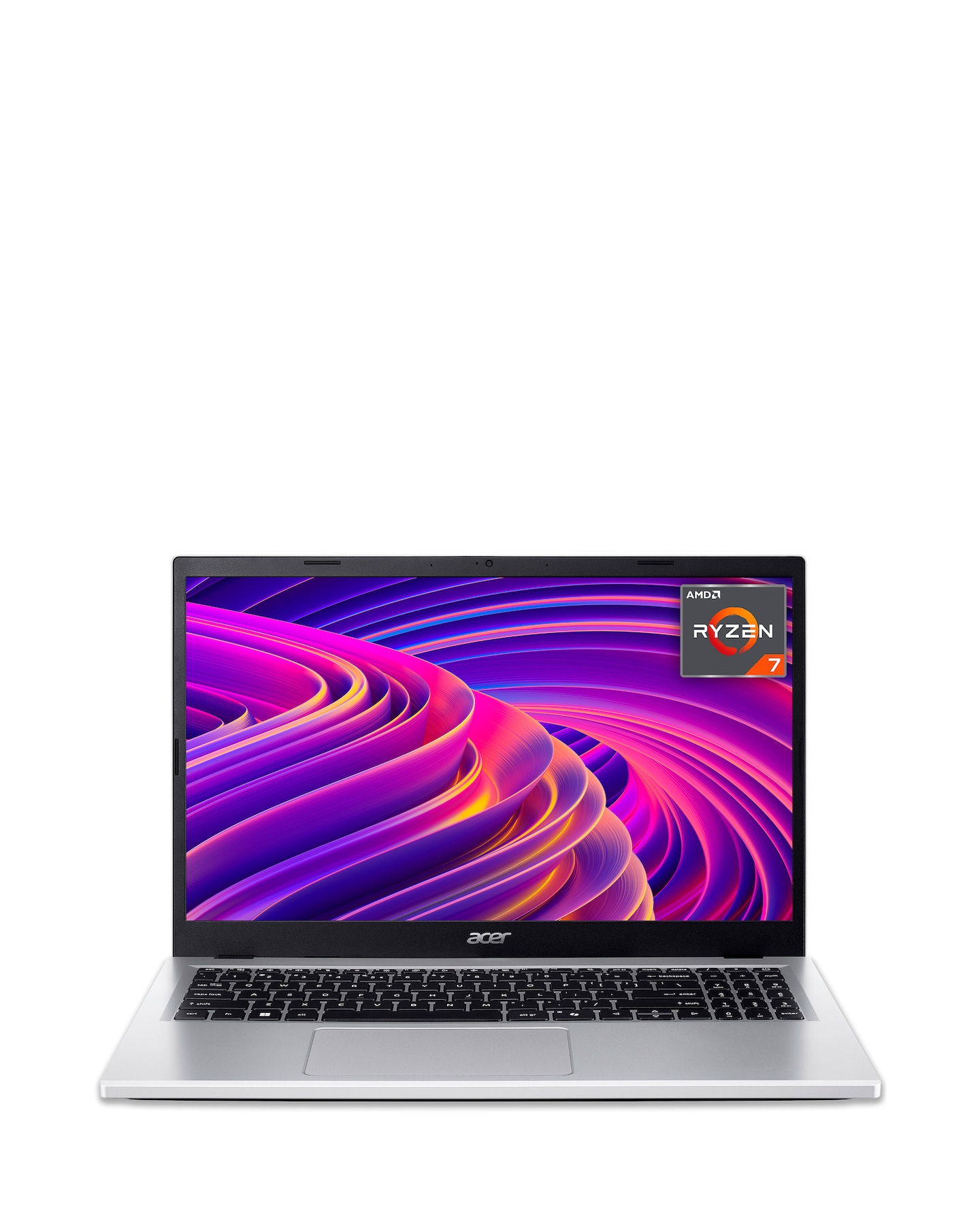
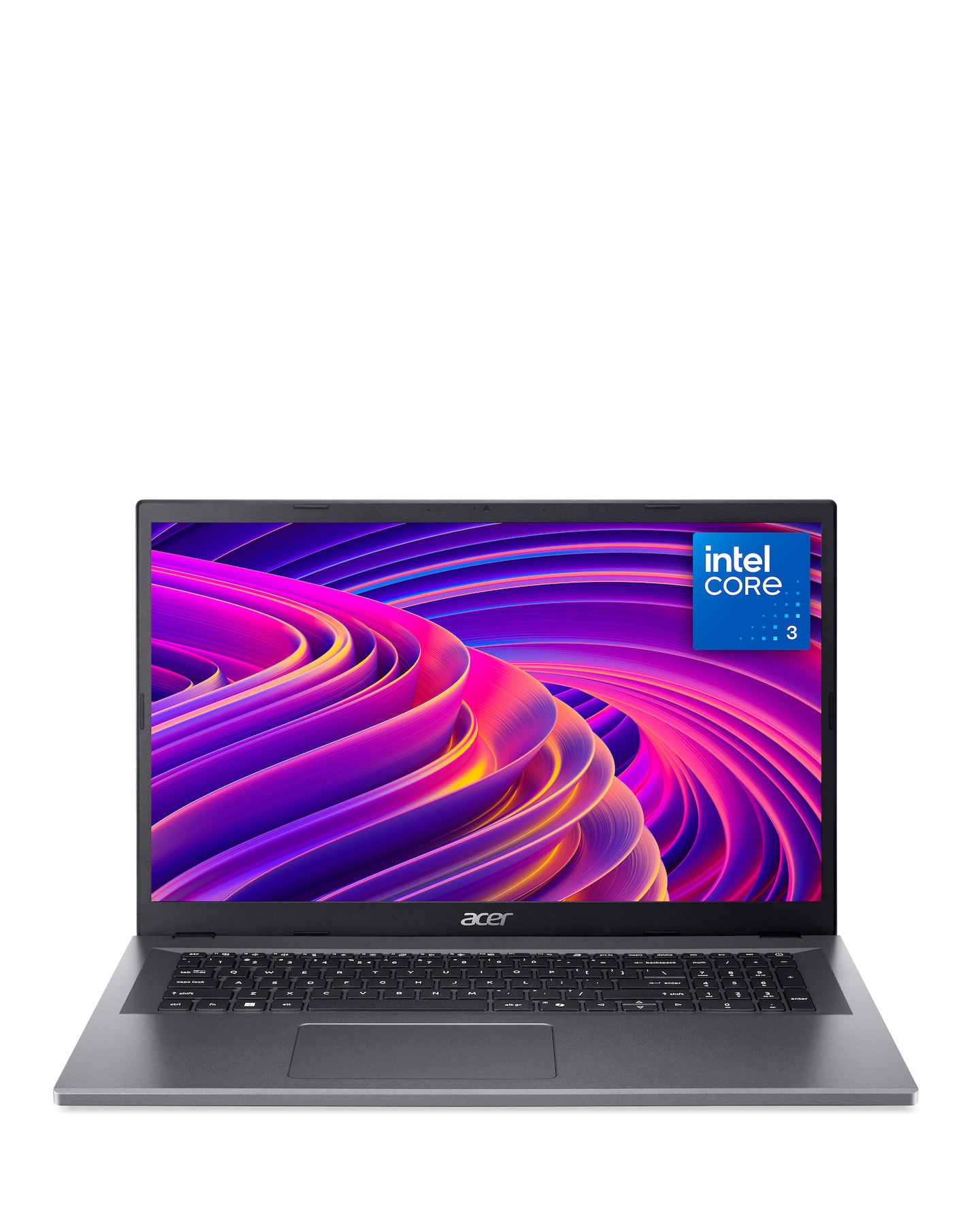
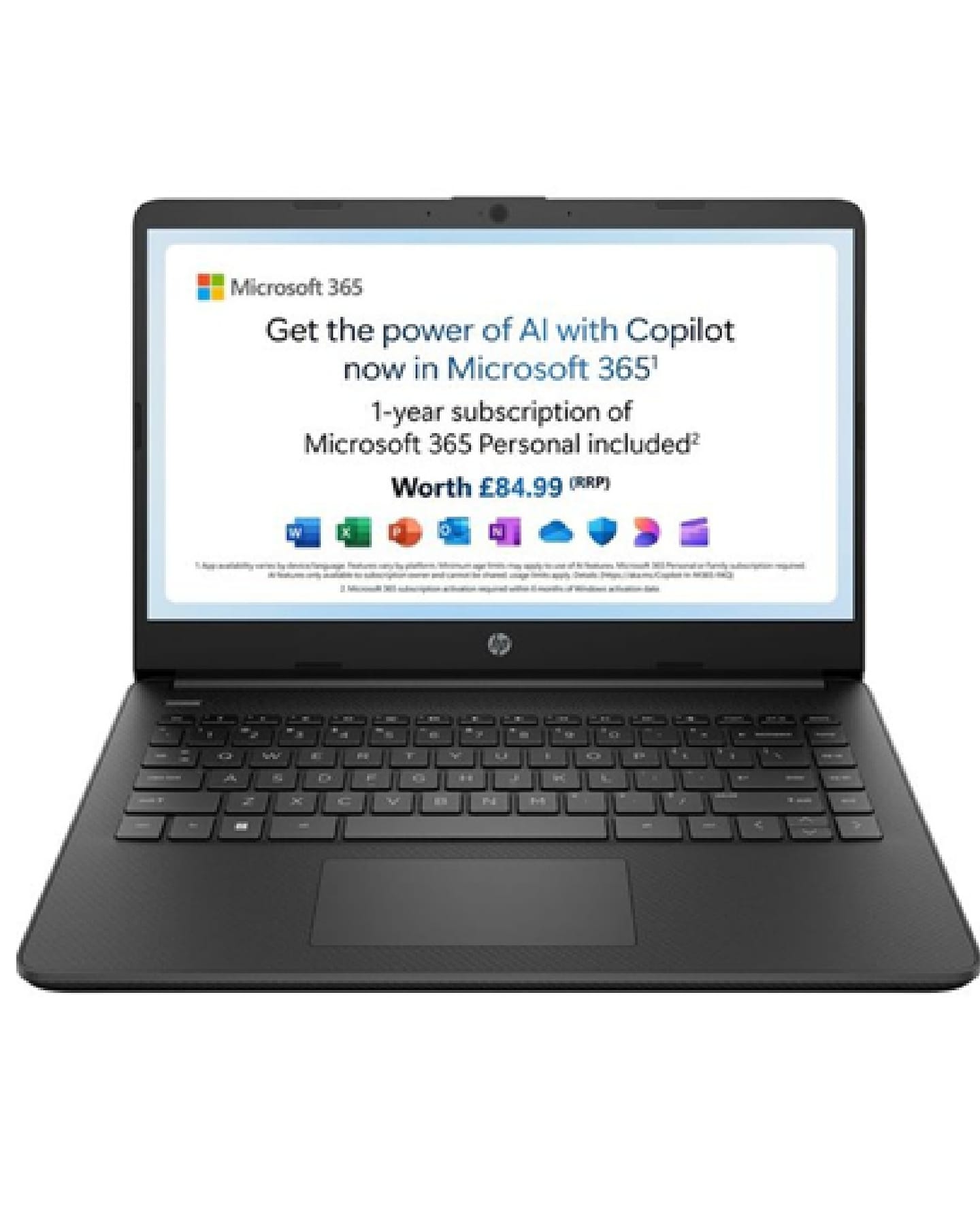
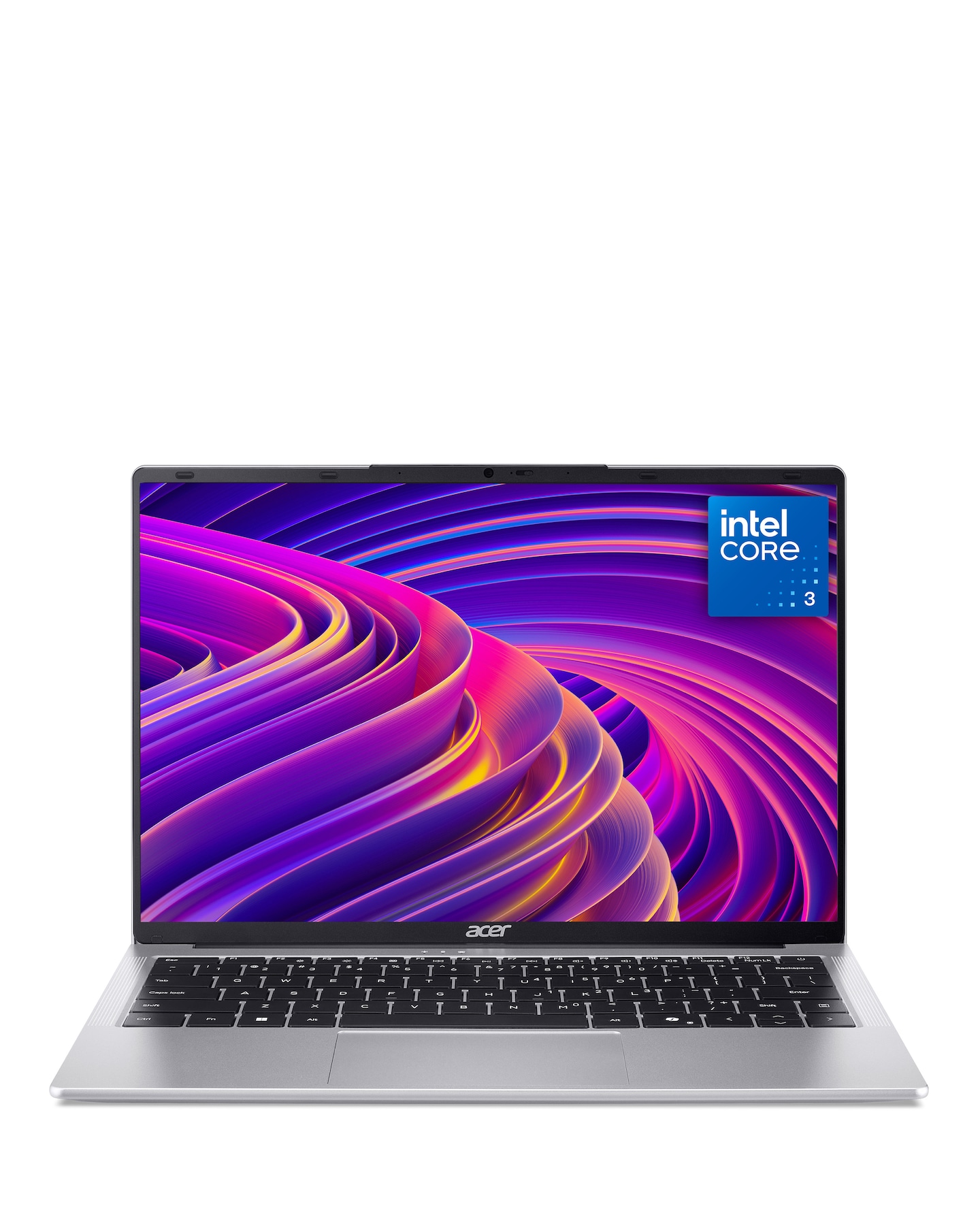
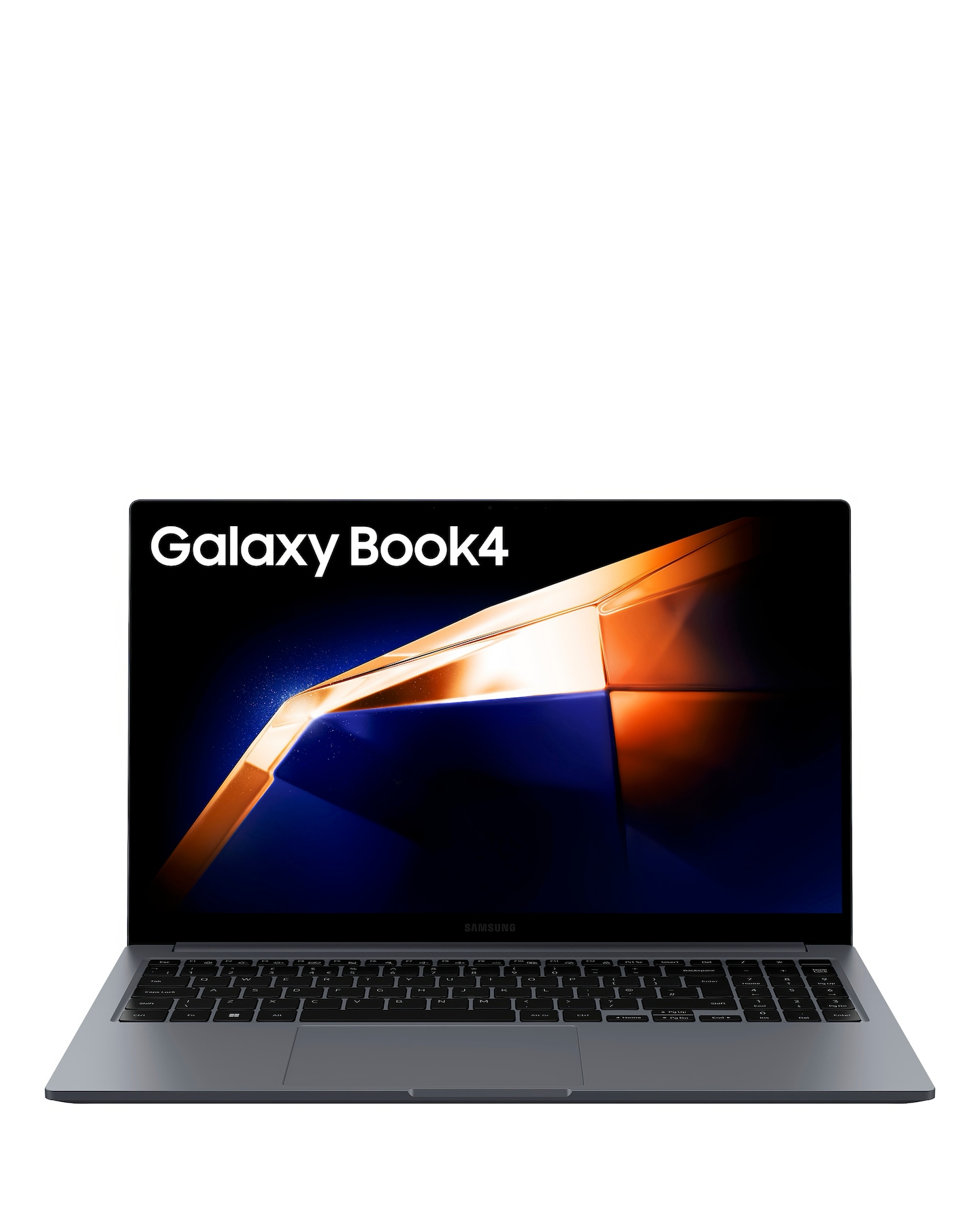
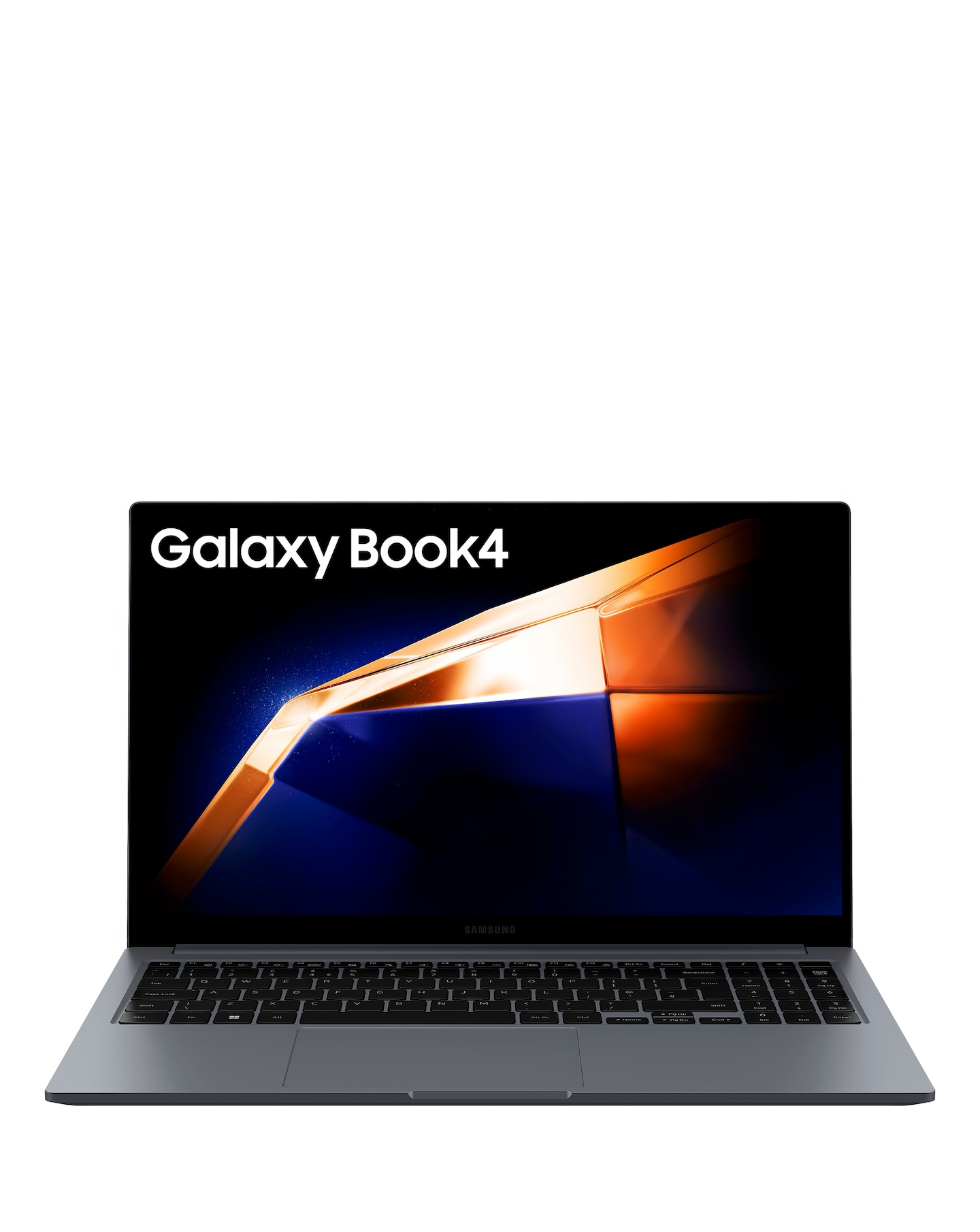
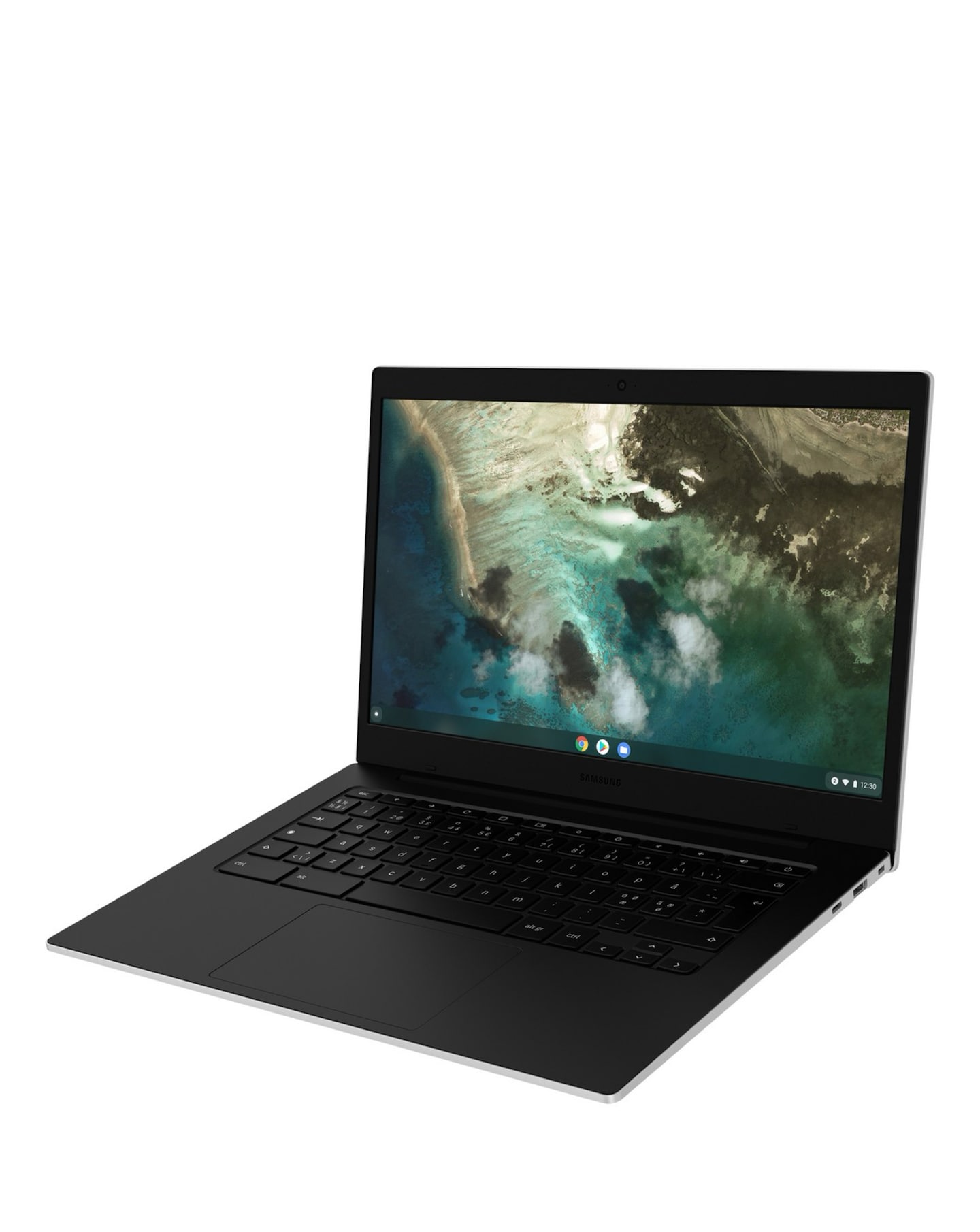
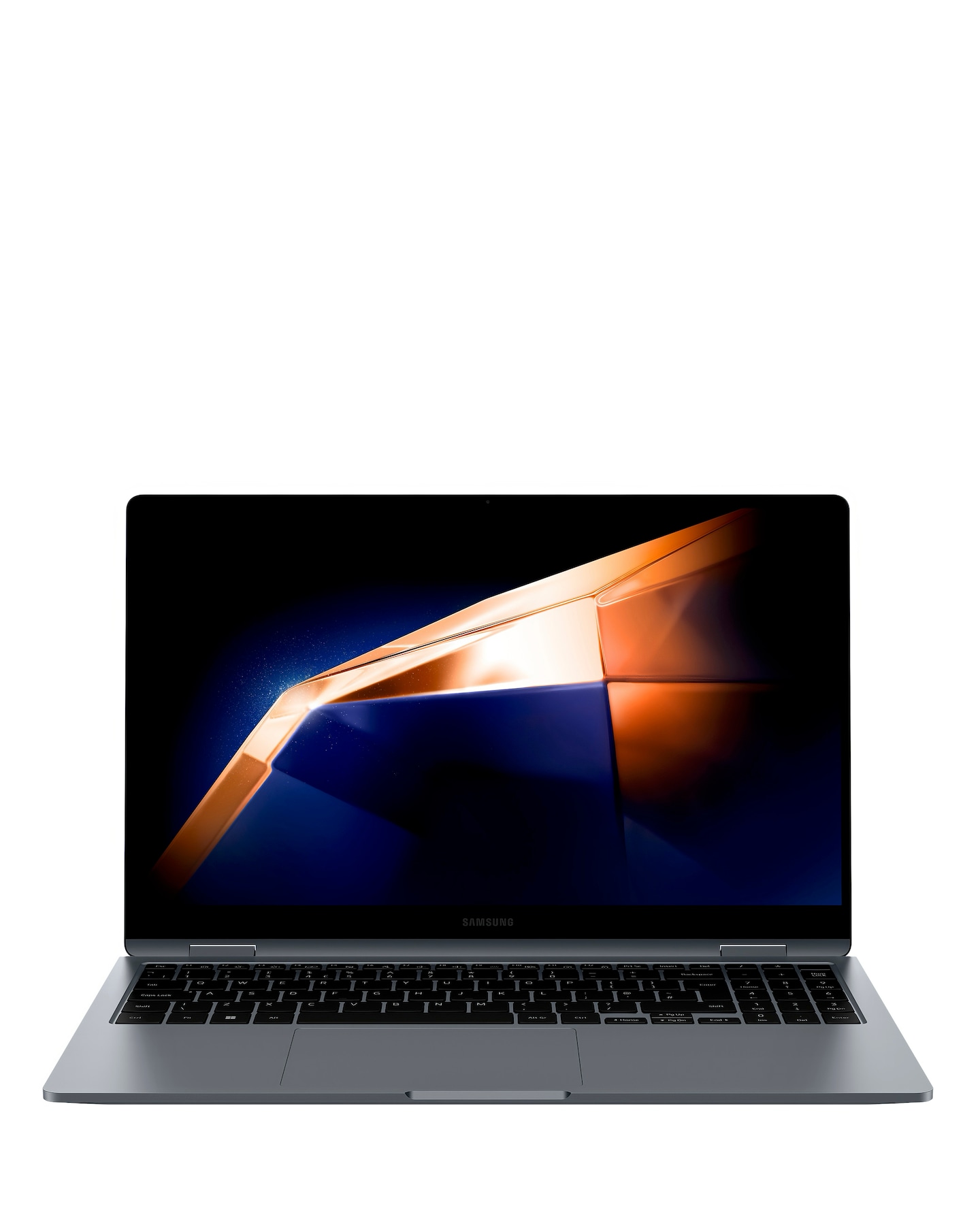
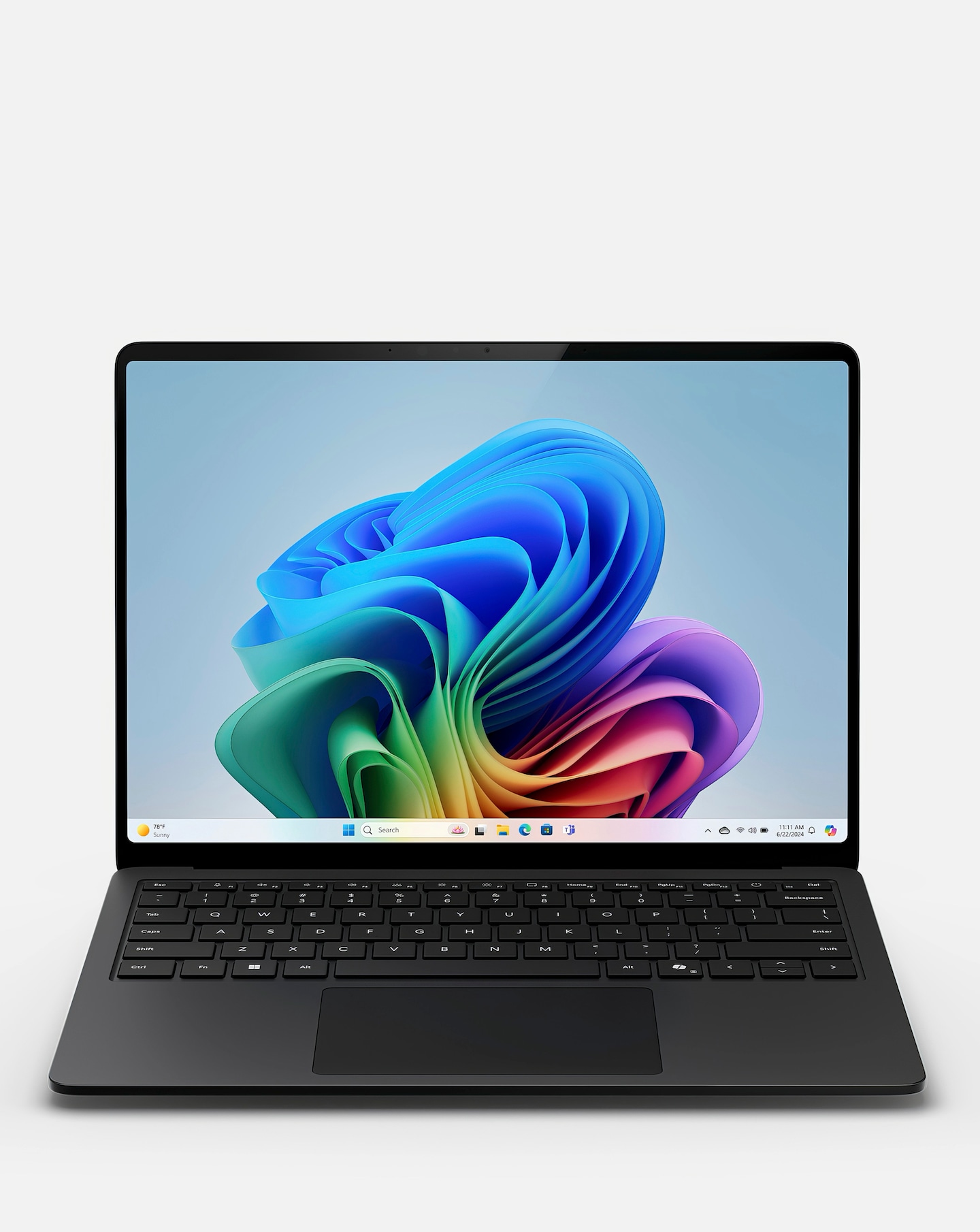
Explore our selection of silver Chromebooks, designed to deliver a seamless computing experience with their sleek and modern aesthetic. These lightweight devices are perfect for both work and play, offering fast performance, long battery life, and easy access to a wide range of applications. With their intuitive interface and robust security features, silver Chromebooks are ideal for students, professionals, and casual users alike. Enjoy the perfect blend of style and functionality with these versatile laptops that are ready to keep up with your busy lifestyle.
What are the benefits of using a silver Chromebook?
- Silver Chromebooks offer a stylish and contemporary look while providing excellent portability and performance. They are typically lightweight, making them easy to carry around, and feature long battery life for all-day use. Additionally, they come with built-in security features to protect your data.
Can I use a silver Chromebook for gaming?
- While silver Chromebooks are not primarily designed for high-end gaming, they can handle casual games and browser-based titles quite well. Many Chromebooks support Android apps, which expands your gaming options. However, for more demanding games, a dedicated gaming laptop may be a better choice.
Are silver Chromebooks suitable for students?
- Yes, silver Chromebooks are an excellent choice for students due to their affordability, ease of use, and long battery life. They provide access to essential educational tools and applications, making them ideal for online learning and research. Their lightweight design also makes them easy to transport between classes.
What operating system do silver Chromebooks use?
- Silver Chromebooks run on Chrome OS, a user-friendly operating system developed by Google. This OS is designed for speed and simplicity, allowing users to quickly access web-based applications and services. Regular updates ensure that the system remains secure and efficient.
How do I connect a silver Chromebook to Wi-Fi?
- Connecting a silver Chromebook to Wi-Fi is straightforward. Simply click on the network icon in the bottom right corner of the screen, select your Wi-Fi network from the list, and enter the password if prompted. Once connected, your Chromebook will remember the network for future use.